Best ChatGPT Userscripts to Customize Your AI Workflow
Discover the best ChatGPT userscripts that add text highlighting, conversation export, UI cleanup, and more. Install them in seconds with a userscript manager.

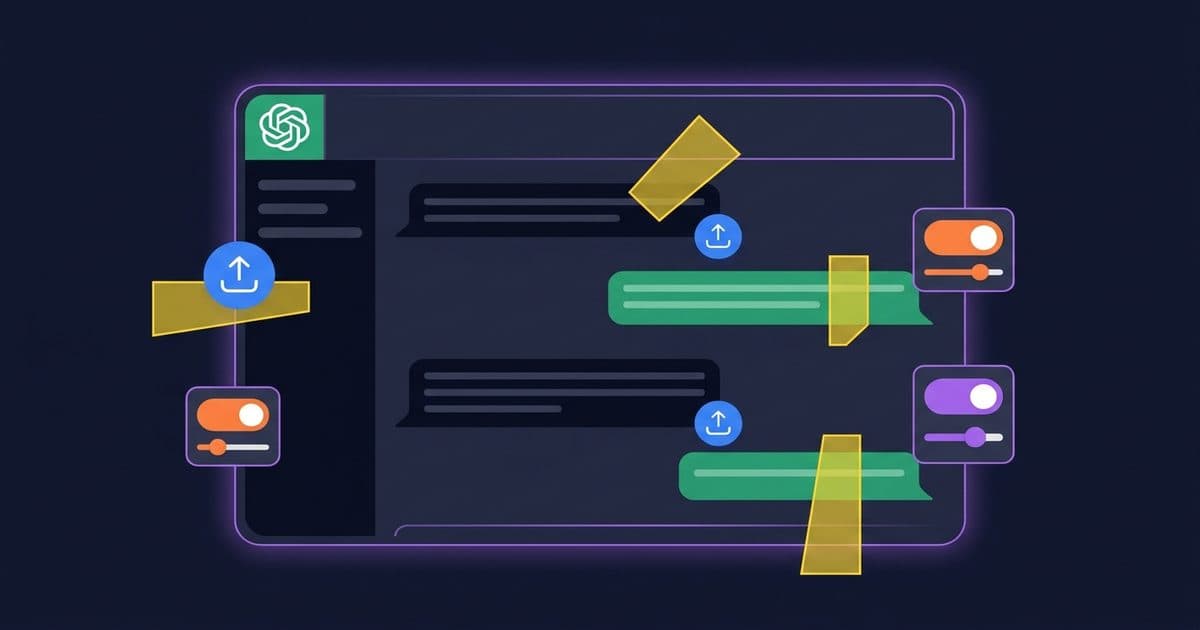
ChatGPT userscripts are small JavaScript programs that modify and enhance the ChatGPT web interface. They run locally in your browser through a userscript manager like Tampermonkey, adding features that ChatGPT does not ship with: text highlighting, conversation export, UI cleanup, and more.
A ChatGPT userscript is a lightweight browser script that injects custom functionality into the chatgpt.com interface. Unlike browser extensions, userscripts install in one click and run only on the pages you specify. They require no app store approval, no special permissions, and no setup beyond a userscript manager.
If you spend hours in ChatGPT every day, the right userscript saves real time. This guide covers the best ChatGPT userscripts available right now, what each one does, and how to install them in under a minute.
Why use userscripts with ChatGPT?
ChatGPT is powerful out of the box, but it has limitations. You cannot highlight text in responses. You cannot export full conversations easily. The interface has clutter you might want to hide. Userscripts fill these gaps without waiting for OpenAI to add features.
Here is what the best ChatGPT userscripts can do:
| Category | What it adds | Example |
|---|---|---|
| Productivity | Highlight, annotate, export | ChatGPT Text Highlighter |
| Interface | Hide sidebar, clean up UI | ChatGPT UI Cleaner |
| Data portability | Export chats as PDFs | ChatGPT Archive Exporter |
| Quality of life | Auto-fill login codes | ChatGPT OTP Auto-Fill |
| Cross-platform | Collapse long AI outputs | AI Chat Auto-Collapse |
Each script addresses a specific pain point. You pick the ones you need.
How do ChatGPT userscripts work?
Userscripts follow the same model across all websites. A userscript manager (Tampermonkey, Violentmonkey) sits in your browser and watches for page loads. When you visit a URL that matches a script's rules, the manager injects that script's JavaScript into the page.
For ChatGPT, that means:
- You install a userscript manager (one-time setup).
- You install a script from a directory like Robomonkey.
- When you open chatgpt.com, the script runs and modifies the interface.
No server calls. No API keys. The code runs entirely in your browser. You can inspect the source of any script before installing it.
The best ChatGPT userscripts
ChatGPT Text Highlighter
Highlight any portion of questions and answers with multiple color options. If you use ChatGPT for research, studying, or reviewing long responses, this script turns ChatGPT into an annotated workspace.
Why it matters: ChatGPT has no built-in highlighting. When you are comparing multiple responses or marking key sections to revisit, you end up copying text into a separate document. This script removes that step entirely.

ChatGPT Text Highlighter
Highlight any portion of questions and answers with multiple color options
ChatGPT Archive Exporter
Export your entire ChatGPT conversation archive as PDFs in a ZIP file, including images. This is essential for anyone who needs to keep records of AI conversations for work, compliance, or personal reference.
Why it matters: ChatGPT's native sharing creates a link, not a file. If OpenAI changes something or you lose access, those conversations are gone. This script gives you local, portable backups.

ChatGPT Archive Exporter
Export your entire ChatGPT conversation archive as PDFs in a ZIP file with images
ChatGPT UI Cleaner
Clean up the ChatGPT interface by hiding or showing the sidebar, header, and other UI elements. If you want a distraction-free writing or coding environment inside ChatGPT, this script strips away the noise.
Why it matters: The sidebar takes up space. The header pulls your attention. When you are deep in a long coding session or writing project, a clean interface helps you focus.
chatgpt-ui-cleaner-1760902980967-f988dcd-7e06-46f4-a9c1-ada79a76d0af could not be loaded.ChatGPT Limit Bypass
Removes the attachment limit message on ChatGPT. When you hit the file upload cap and get a blocking notification, this script clears it so you can continue working.
Why it matters: Hitting arbitrary limits mid-workflow is frustrating. This script removes one of the most common interruptions when you are uploading files to ChatGPT.

ChatGPT Limit Bypass
Removes the attachment limit message on ChatGPT
AI Chat Auto-Collapse
Auto-collapse long chat sections on ChatGPT and other AI chat sites. It works across ChatGPT, Claude, Gemini, DeepSeek, Perplexity, Grok, and more. Expand and collapse controls let you focus on the parts of a conversation that matter.
Why it matters: Long AI responses fill your screen fast. Collapsing old sections keeps the conversation scannable. This is one of the few scripts that works across every major AI chatbot, not just ChatGPT.

AI Chat Auto-Collapse
Auto-collapse chat sections on AI chat sites with expand/collapse controls
How to install ChatGPT userscripts
Installing a ChatGPT userscript takes about 30 seconds if you already have a userscript manager. If you do not, the whole process takes under two minutes.
Step 1: Install a userscript manager
If you have not done this already, install Tampermonkey for Chrome, Edge, or Firefox. It is the most widely used userscript manager with over 10 million users. For a full walkthrough, see our guide to installing Tampermonkey.
Step 2: Browse ChatGPT scripts on Robomonkey
Visit Robomonkey and search for ChatGPT scripts. Each script page shows what it does, what permissions it needs, and the full source code. You can review everything before installing.
Step 3: Click Install
When you click Install on a Robomonkey script page, Tampermonkey detects the userscript format and opens its installation dialog. Confirm the install. The script activates the next time you load chatgpt.com.
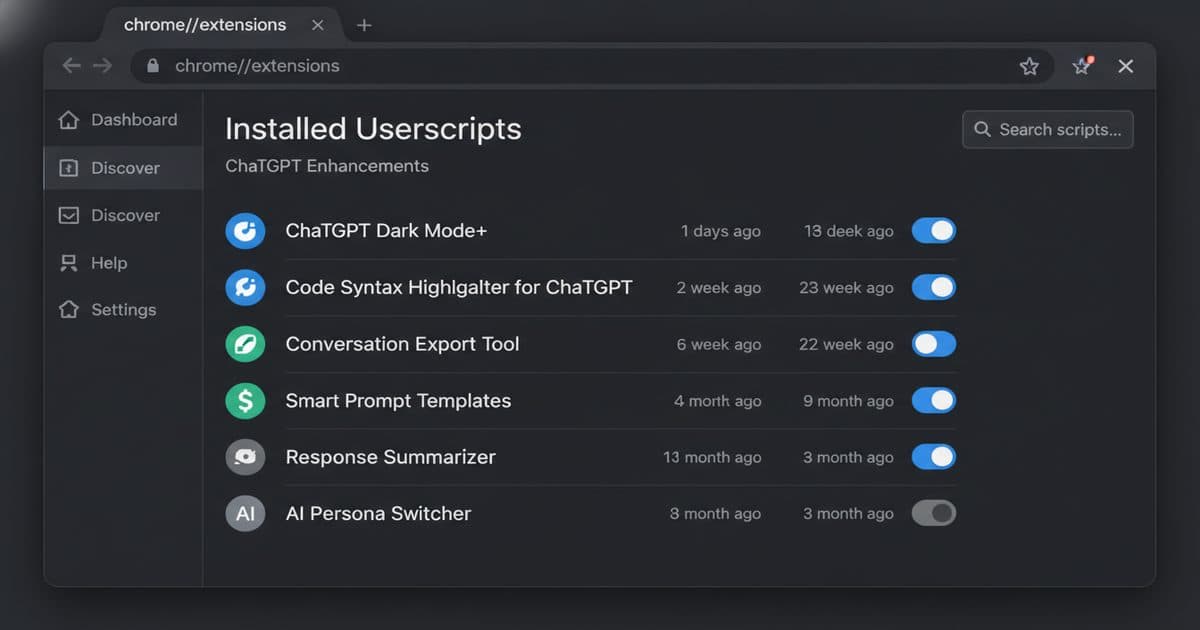
Step 4: Manage your scripts
Open the Tampermonkey dashboard anytime to enable, disable, or remove scripts. You stay in full control of what runs in your browser.
Are ChatGPT userscripts safe?
Yes, when you use scripts from a trusted source. Here is the breakdown:
- Scripts run locally. They execute in your browser, not on a remote server. Your ChatGPT conversations stay between you and OpenAI.
- You can read the source. Every userscript is plain JavaScript. Before installing, you can inspect exactly what it does.
- Robomonkey vets scripts. The directory reviews submissions before publishing them.
- No special permissions needed. Userscripts only access the pages you specify. They cannot read your passwords, access other tabs, or send data elsewhere.
The same safety principles that apply to all userscripts apply here. Stick to reputable directories, review the source if you are unsure, and disable scripts you are not using.
ChatGPT userscripts vs browser extensions
Both userscripts and browser extensions customize your browser. They serve different purposes.
| Feature | Userscripts | Browser extensions |
|---|---|---|
| Installation | One click from web | Install from store |
| Review process | None (instant publish) | Store review required |
| Permissions | Minimal, page-specific | Broader browser access |
| Setup time | Under 30 seconds | 1-2 minutes |
| Updates | Automatic via manager | Automatic via store |
| Complexity | Simple, single-purpose | Can be complex |
Userscripts are best for focused, single-feature tweaks. Extensions are better for large projects that need deep browser integration. For ChatGPT customization, userscripts cover most needs. For a deeper comparison, see our guide to what a browser extension is.
More ChatGPT extensions on Robomonkey
The scripts above are the top picks, but the directory has more. Browse all ChatGPT userscripts on Robomonkey to find ones that match your specific workflow.


FAQ
Can you use userscripts on ChatGPT?
Yes. Install a userscript manager like Tampermonkey, then add any ChatGPT userscript from a directory like Robomonkey. The script runs automatically when you open chatgpt.com.
What can ChatGPT userscripts do?
ChatGPT userscripts can highlight text in conversations, export chats as PDFs, clean up the interface, auto-fill login codes, remove UI limits, and add new features that ChatGPT does not include by default.
Are ChatGPT userscripts safe?
Userscripts from trusted directories are safe. They run locally in your browser and never send your data to external servers. Always review a script's source code before installing, and use a reputable directory like Robomonkey that vets published scripts.
Do ChatGPT userscripts work on mobile?
Most ChatGPT userscripts work on desktop browsers with Tampermonkey or Violentmonkey. Mobile support depends on your browser. Firefox for Android supports userscript managers, but Safari on iOS does not.
How do I install a ChatGPT userscript?
Install a userscript manager extension like Tampermonkey, visit the script page on Robomonkey, and click Install. The script activates automatically the next time you open ChatGPT.