How to Install Tampermonkey on Any Browser
Install Tampermonkey in under a minute on Chrome, Firefox, Edge, Safari, or Opera. Step-by-step instructions plus how to find and run your first userscript.

Tampermonkey is a free browser extension that lets you run userscripts, small JavaScript programs that change how websites look and behave. You install it from your browser's extension store in under a minute, no restart needed.
With Tampermonkey installed, you can customize any website: block ads, add keyboard shortcuts, change layouts, or automate repetitive tasks. You can write scripts yourself or install ready-made ones from public registries. Robomonkey can also generate userscripts from a plain English description, no coding required.
How do I install Tampermonkey on Chrome?
- Open the Chrome Web Store.
- Click Add to Chrome.
- Confirm by clicking Add extension in the popup.
The Tampermonkey icon appears in your toolbar. Click it to open the dashboard, where you create new scripts or manage installed ones.
Note for Chrome users: Chrome now requires Developer Mode to be enabled for userscripts to run. After installing Tampermonkey, right-click its icon, select "Manage extension," and toggle on "Allow user scripts." You may also need to enable Developer Mode on the extensions page (toggle at top right). Then reload any open pages.
How do I install Tampermonkey on Firefox?
- Visit Firefox Add-ons.
- Click Add to Firefox.
- Review the permissions and click Add.
Firefox may ask whether to allow the extension in private windows. This is optional. Tampermonkey works in normal tabs either way.
How do I install Tampermonkey on Edge?
- Open the Microsoft Edge Add-ons store.
- Click Get.
- Accept the permissions prompt.
Edge shares Chrome's extension engine, so the Tampermonkey experience is identical on both browsers. The Developer Mode step described for Chrome above also applies to Edge.
How do I install Tampermonkey on Safari?
- Open the Mac App Store.
- Click Get or download.
- Safari will ask for permission to install the extension.
Safari requires a one-time system-level approval. If the Tampermonkey icon doesn't appear in your toolbar, open Safari Settings, go to the Extensions tab, and enable Tampermonkey there.
How do I install Tampermonkey on Opera?
- Visit the Opera Add-ons store.
- Click Add to Opera.
- Confirm the installation.
Opera also supports Chrome extensions directly. If the Opera Add-ons version is outdated, install the Install Chrome Extensions add-on first, then get Tampermonkey from the Chrome Web Store.
How do I verify that Tampermonkey is working?
After installation, do a quick check:
- Click the Tampermonkey icon in your toolbar.
- You should see a menu with options like "Create a new script" and "Dashboard."
- If the icon is missing, pin it from the extensions menu (the puzzle piece icon on Chrome and Edge).
You can also test by visiting any .user.js URL. Tampermonkey intercepts the page and shows the script source with an Install button.
How do I find and install my first userscript?
Tampermonkey doesn't ship with any scripts. You add them yourself. Here are the main sources:
Greasyfork is the largest public userscript registry. Search for a script, click "Install this script," and confirm in the Tampermonkey popup. Always check the description and skim the code before installing.
OpenUserJS is a smaller, community-run registry. The install process is identical to Greasyfork.
Robomonkey takes a different approach. Instead of browsing a registry, you describe what you want in plain English (like "block YouTube shorts from my feed") and it generates a working userscript. You can install it directly into Tampermonkey or edit the code first. This is the fastest path if you don't want to write JavaScript yourself.
What happens when you install a userscript?
When you click Install on a userscript, Tampermonkey:
- Reads the metadata block between
// ==UserScript==and// ==/UserScript==. - Stores the script locally in your browser profile.
- Checks the
@matchlines to determine which URLs the script should run on. - Monitors every page load and injects the script when the URL matches a pattern.
You can view, edit, enable, or disable any script from the Tampermonkey dashboard at any time.
What are the most common Tampermonkey issues?
| Problem | Cause | Fix |
|---|---|---|
| Icon missing from toolbar | Extension not pinned | Click the puzzle piece icon (Chrome/Edge) and pin Tampermonkey |
| Script not running on a page | URL doesn't match @match pattern | Edit the script in the dashboard and add the correct URL pattern |
| "Please enable Developer Mode" prompt | Chrome security policy | Go to chrome://extensions, enable Developer Mode, reload the page |
Can't install from .user.js URL | Browser blocking the install | Make sure Tampermonkey is enabled, then reload the page |
| Permission errors during install | Script requests special APIs | Review @grant lines carefully before confirming the install |
How do I manage installed userscripts?
Open the Tampermonkey dashboard (click the icon, then "Dashboard") to manage your scripts:
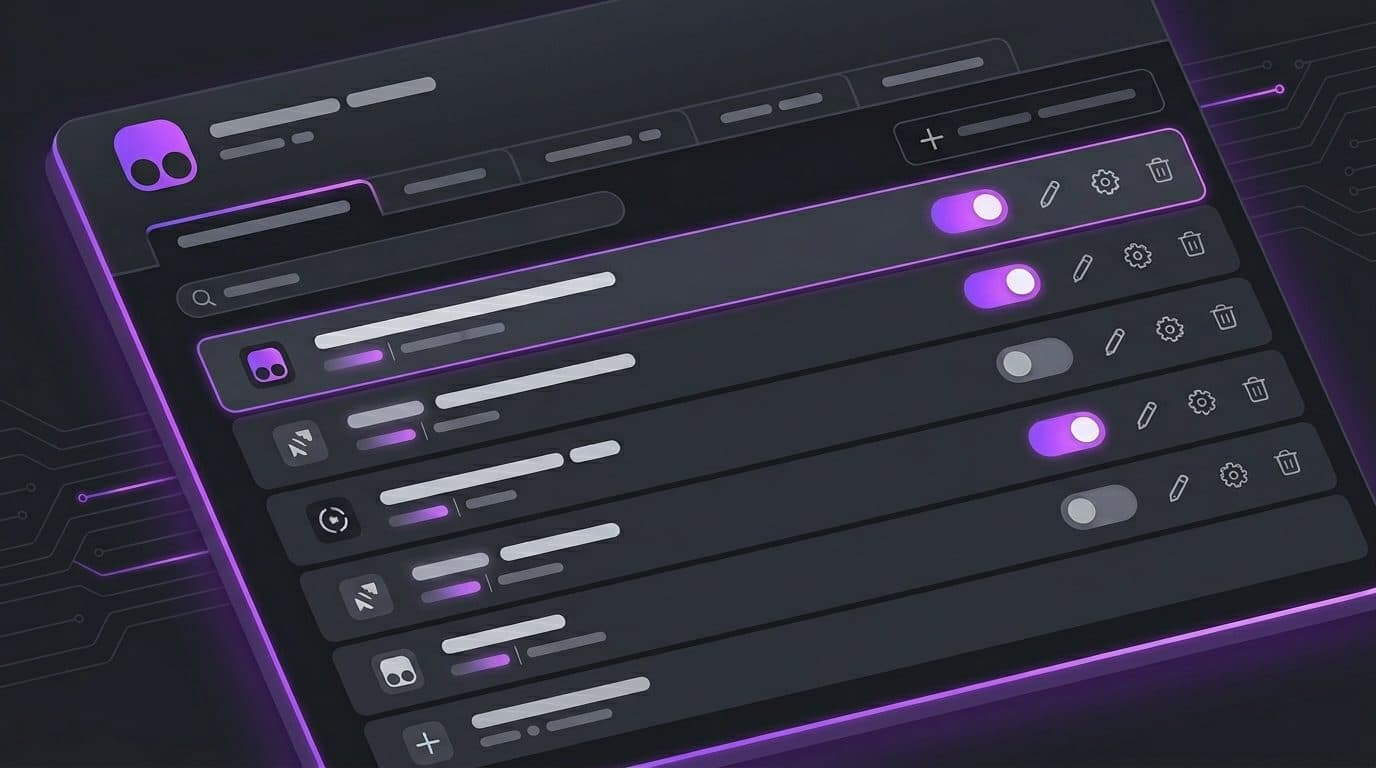
From the dashboard you can:
- Click any script to edit its code or metadata.
- Toggle the checkbox to enable or disable a script without removing it.
- Click the trash icon to permanently delete a script.
- Use the "Check for updates" option to pull the latest version from the source URL.
The dashboard also shows which scripts are active on your current page and flags any that have errors.
What are the security best practices for userscripts?
Userscripts run with the same access as the page they're injected into. That makes them powerful, but it also means a malicious script can read your data or act on your behalf.
- Only install from registries you trust (Greasyfork, OpenUserJS).
- Read the code before installing, especially anything with
eval,GM_xmlhttpRequest, or data persistence. - Check the
@matchand@grantlines to understand what the script accesses. - Prefer scripts with many installs and positive reviews.
- Disable scripts you're not actively using.
Tampermonkey itself doesn't collect or transmit data. All scripts run locally in your browser.
Tampermonkey vs. Violentmonkey: which should you use?
Both extensions do the same job: they manage and run .user.js files in your browser. The key differences:
| Feature | Tampermonkey | Violentmonkey |
|---|---|---|
| Open source | No | Yes (full source on GitHub) |
| User base | Larger (10M+ users on Chrome) | Smaller but active |
| Update frequency | Frequent | Regular |
| GM_* API support | Full | Full |
| Dashboard UI | Feature-rich | Simpler |
| Script sync | Built-in (with account) | Via browser sync |
If you care about open source, pick Violentmonkey. If you want the largest community and built-in script sync, pick Tampermonkey. For running scripts, both work identically. Either one is compatible with scripts from Greasyfork and with scripts generated by Robomonkey.
Extensions for this domain are coming soon — check back later!
What should I do after installing Tampermonkey?
Once Tampermonkey is set up, you have three paths:
- Browse Greasyfork for existing scripts that solve a problem you have.
- Write your own userscript using the built-in editor. The editor has syntax highlighting and the browser console handles debugging. Most useful scripts are under 200 lines.
- Use Robomonkey to describe what you want in plain English and get a working userscript without writing code. Try it free at robomonkey.io.
If you're new to userscripts, start with our guide to what userscripts are and how they work.
Frequently asked questions
How do I install Tampermonkey? Open your browser's extension store, search for Tampermonkey, and click Add to Browser. The installation takes under a minute and requires no restart.
Is Tampermonkey safe to use? Tampermonkey itself is safe and used by millions of people. The risk comes from the userscripts you install, which can access page data. Only install scripts from trusted sources like Greasyfork and review the code before confirming.
Which browsers support Tampermonkey? Tampermonkey works on Chrome, Firefox, Edge, Safari, and Opera. Each browser has its own version available in the respective extension store.
Do I need to restart my browser after installing Tampermonkey? No. Tampermonkey installs instantly and is active right away. Just navigate to any page and it will be ready.
What is the difference between Tampermonkey and Violentmonkey? Both are userscript managers that run .user.js files in your browser. Tampermonkey has a larger user base and more frequent updates. Violentmonkey is fully open source. Either one lets you install and run userscripts the same way.
How do I install a userscript after installing Tampermonkey? Visit a .user.js URL on a site like Greasyfork or use Robomonkey to generate one. Tampermonkey intercepts the file and shows an install confirmation dialog. Click Install and the script runs automatically on matching pages.