What is a Browser Extension? Complete Guide
A browser extension is a small software program that adds features to your web browser. Learn how they work, what they can do, and how to install them safely.

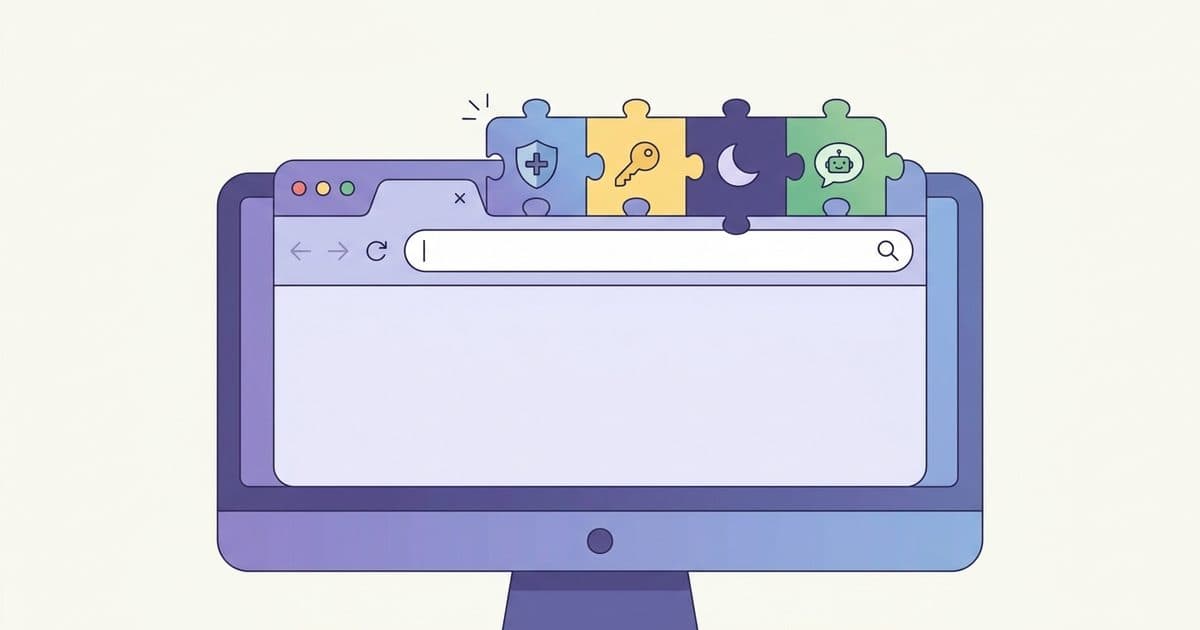
A browser extension is a small software program that adds features to your web browser. It installs through your browser's store, runs in the background, and changes how websites look or work.
Think of it this way: your browser handles tabs, bookmarks, and rendering pages. Extensions fill in the gaps. They block ads, manage passwords, inject custom CSS, or connect websites to tools you already use. Robomonkey is a browser extension that lets you build and install custom userscripts and extensions without writing code.
How do browser extensions work?
Extensions plug into your browser through APIs the browser exposes. They're built with the same technologies as websites: HTML, CSS, and JavaScript. But instead of running on a server, they run inside the browser process.
Here are the main pieces:
| Component | What it does |
|---|---|
| Content scripts | JavaScript that runs on specific web pages. Can read and modify the page's DOM. |
| Background scripts | Run independently of any tab. Handle events like tab changes, network requests, or alarms. |
| Popup | The small window that opens when you click the extension icon. |
| Options page | A full settings page for the extension. |
| Manifest | A JSON file that declares permissions, scripts, and metadata. The browser reads this first. |
Content scripts can see the page. Background scripts can see the browser. The manifest ties them together.
What can browser extensions actually do?
Extensions have broad access to your browsing. Here's what that looks like in practice:
Modify pages. Content scripts can add, remove, or change elements on any website. An ad blocker removes <div> elements that match ad patterns. A dark mode extension rewrites CSS rules.
Intercept network requests. Extensions can block or redirect HTTP requests before they reach the server. This is how ad blockers and privacy tools stop trackers at the network level.
Access browser data. With the right permissions, extensions can read your bookmarks, history, tabs, and cookies. Password managers use this to fill credentials across sites.
Show notifications and UI. Extensions can display browser notifications, add sidebar panels, or overlay content on pages.
Communicate with external services. Extensions can make API calls to external servers. A GitHub notification extension polls the GitHub API. A note-taking extension syncs to a cloud backend.
Google's Chrome documentation lists over 40 API namespaces available to extensions, from bookmarks to storage to tabGroups.
How do you install a browser extension?
Each major browser has its own store:
| Browser | Extension store | Approx. extensions |
|---|---|---|
| Chrome | Chrome Web Store | 190,000+ |
| Firefox | Firefox Add-ons | 40,000+ |
| Edge | Edge Add-ons | 15,000+ |
| Safari | Mac App Store | Varies |
Chrome Web Store hosts over 190,000 extensions as of 2025, according to Extension Monitor's annual report. That makes it the largest extension marketplace by a wide margin.
To install one: open the store, search for the extension, click "Add to Browser," and review the permissions popup. The extension installs instantly and its icon appears in your toolbar.
Are browser extensions safe?
This is the question most people should ask but don't. Extensions have real access to your data. A malicious extension can read every password you type, track every site you visit, and exfiltrate that data to a remote server.
Here's how to stay safe:
- Install from official stores only. Stores review submissions, though the process isn't perfect. Chrome Web Store has removed malicious extensions after the fact.
- Check permissions before installing. If a to-do list extension asks for access to all your browsing data, that's a red flag.
- Look at install count and reviews. An extension with 2 million users and 4.5 stars is safer than one with 200 users and no reviews.
- Remove extensions you don't use. Every installed extension is another potential attack surface.
- Check who made it. Extensions from companies like Bitwarden or the EFF are more trustworthy than ones from anonymous developers.
Mozilla's extension review policies require human review for all listed Firefox extensions. Chrome uses a mix of automated and manual review. Both systems have had misses, but they catch most threats.
What is Manifest V3?
Manifest V3 is the current standard for Chrome extensions. Google started enforcing it in 2024, and other Chromium browsers (Edge, Brave, Opera) followed.
The big change: Manifest V3 replaced persistent background pages with service workers. Background scripts can no longer run continuously. They wake up on events and shut down when idle.
This matters for two reasons:
- Performance. Extensions can't hog memory with always-on background processes. Service workers use roughly 80% less memory than persistent background pages, according to Google's developer documentation.
- Privacy. Persistent background pages could monitor every tab at all times. Service workers can't do that. They only run when triggered.
The tradeoff: some extensions that relied on persistent background scripts had to be rewritten. Ad blockers lost access to the webRequest API's blocking capability and now use the more limited declarativeNetRequest API. This sparked significant pushback from privacy advocates and extension developers.
Firefox supports Manifest V3 but has kept the webRequest blocking API. That's why uBlock Origin still works at full power on Firefox.
Extensions vs. userscripts
Extensions and userscripts both customize your browser, but they sit at different points on the complexity spectrum.
| Extensions | Userscripts | |
|---|---|---|
| What it is | Packaged program with manifest, UI, and scripts | Single .user.js file |
| How you install | Browser extension store | Userscript manager like Tampermonkey |
| Permissions | Declared in manifest, granted at install | Minimal (often @grant none) |
| Can modify pages | Yes | Yes |
| Can show UI | Popups, sidebars, options pages | Limited to page-level overlays |
| Background processing | Service workers | No |
| Distribution | Curated store with review process | Open registries like Greasyfork |
| Time to build | Hours to weeks | Minutes to hours |
| Best for | Complex tools with settings and sync | Quick, site-specific tweaks |
If you want to hide YouTube recommendations or tweak a button color, a userscript is the faster path. If you need a popup, background sync, or browser-level integration, build an extension.
Either way, Robomonkey handles the heavy lifting. Describe what you want in plain English and get a working script or extension you can install immediately.
Read our full breakdown at What is a Userscript?.
How to build your own extension
Building an extension starts with a manifest file and a content script. Here's the minimum viable extension:
1{
2  "manifest_version": 3,
3  "name": "My First Extension",
4  "version": "1.0",
5  "description": "Does something useful",
6  "content_scripts": [
7    {
8      "matches": ["https://example.com/*"],
9      "js": ["content.js"]
10    }
11  ]
12}1// Runs on every page matching the @matches pattern
2document.body.style.backgroundColor = "#1a1a2e";That's it. Two files. Load it as an unpacked extension in chrome://extensions with developer mode enabled, and it runs.
For anything more complex, you'll add:
- A
backgroundservice worker for events - A
popup.htmlfor the toolbar UI - Permissions in the manifest for APIs you need
The Chrome Extension documentation and MDN WebExtensions guide cover every API in detail.
Don't want to write code? Robomonkey generates working extensions and userscripts from a plain English description. You describe what you want, it ships a working .user.js you can install instantly. No manifest file, no build step, no review process. Try it free at robomonkey.io.
Troubleshooting common extension problems
Extension not working after a browser update. Browser updates sometimes disable extensions or break compatibility. Check chrome://extensions (or the equivalent in your browser). If the extension is disabled, re-enable it. If it's still broken, check the store for an update.
Website looks broken. An extension's content script might be conflicting with the page. Disable extensions one at a time until the site works again. Ad blockers and privacy tools are the most common culprits.
Browser feels slow. Open your browser's built-in task manager (Shift+Esc in Chrome) to see which extensions use the most memory and CPU. Remove or replace the heavy ones.
Two extensions conflict. When two extensions try to modify the same page element, things break. Pick one or use different browser profiles for different workflows.
Frequently asked questions
What is a browser extension? A browser extension is a small software program that adds features to your web browser. It installs through the browser's store and runs in the background. Extensions can block ads, manage passwords, customize page layouts, or connect websites to external services.
Are browser extensions safe? Extensions from official stores like Chrome Web Store or Firefox Add-ons go through review, but no system is perfect. Check the permissions an extension requests. If they don't match what the extension does, don't install it. Remove extensions you no longer use.
How do I install a browser extension? Open your browser's extension store, find the extension, and click Add to Browser. Review the permissions in the confirmation popup. The extension installs in seconds and its icon shows up in your toolbar.
What's the difference between an extension and a userscript? Extensions are full programs with manifests, permissions, and UI surfaces, distributed through browser stores. Userscripts are single JavaScript files that run through a manager like Tampermonkey. Extensions handle complex tasks; userscripts handle quick, page-specific tweaks. Robomonkey can generate both from a description. Read our full guide to userscripts for the deeper comparison.
Do browser extensions slow down my browser? They can. Each active extension consumes memory and CPU. Use your browser's task manager to find heavy extensions, remove ones you don't need, and stick to well-maintained extensions from known developers.